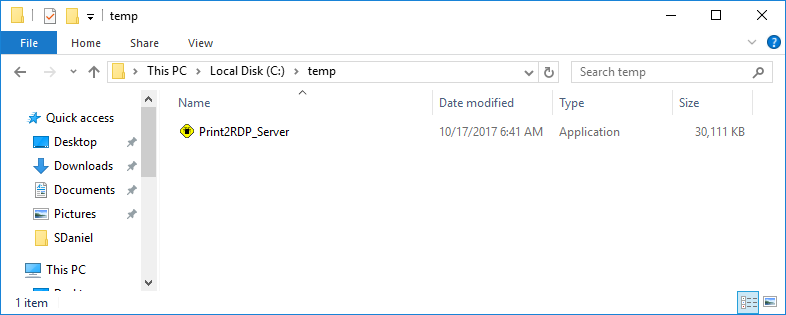
Launch the downloaded Print2RDP Server file to begin installation.
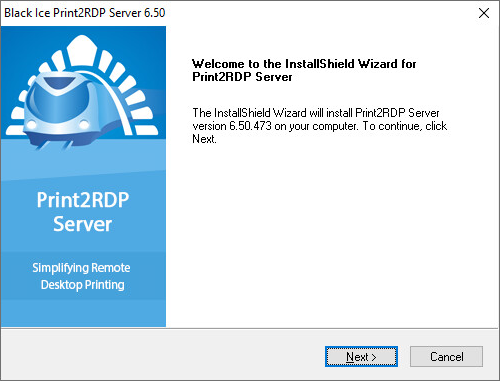
Click Next to start the installation of the Print2RDP.
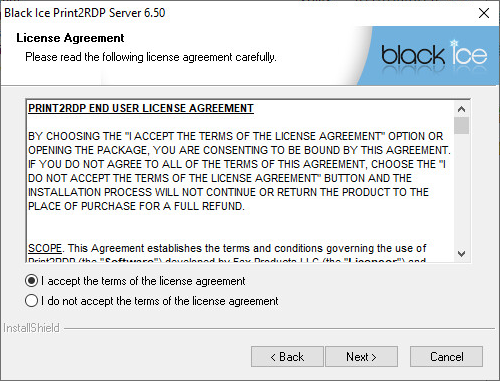
Read and accept the License Agreement and Click Next.
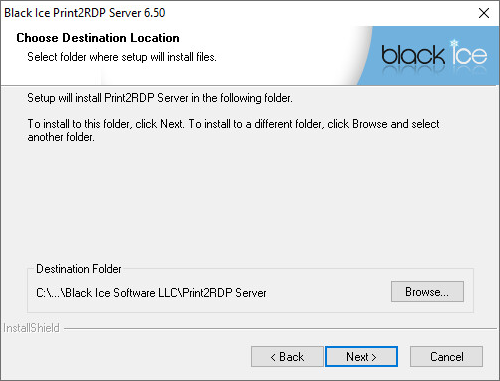
Use the default location or choose a directory to install Print2RDP to by clicking the Browse… button and selecting a directory. Click Next.
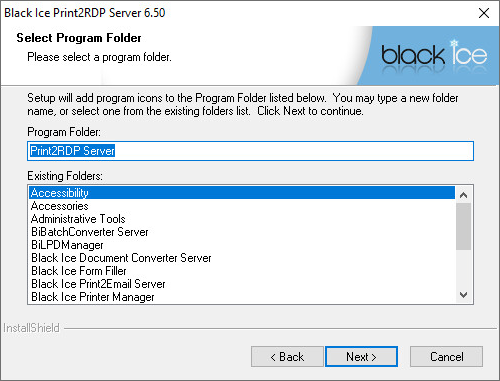
Choose a different Program Folder or choose the default folder by not making any changes. Click Next.
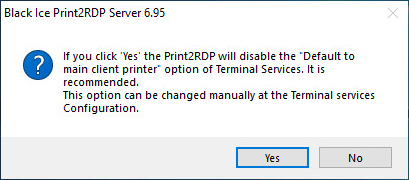
If the “Default to main client printer” option of Terminal Services is enabled on the system, the following window appears. To disable this option (recommended), click Yes.
Note: “Default to main client printer” option automatically sets the default printer of the server as the default printer for all client sessions, by disabling this you will allow printers mounted by Print2RDP to be set as the default printer for the client sessions.
Print2RDP copies the files to the computer and the following window appears if the installation is finished successfully. Click Finish to complete the installation.
