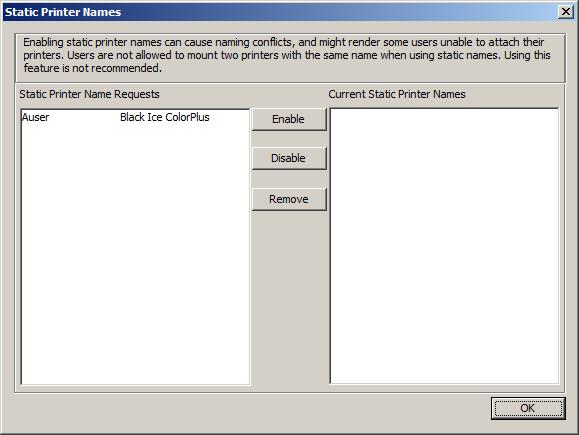
Users can send Static Printer Name Requests to the Print2RDP server. The administrator of the server can enable Static Printer Name Requests. When the static printer name is enabled for the user, the static printer name appears for the user at the next logon. Mapped printers appear with Session IDs until the administrator enables a static printer name for the user.
To apply Static Printer Name Requests, perform the following steps:
1. Open Print2RDP Server.
2. On the Printer Naming tab press Static Printer Names.
3. On the pop-up window Static Printer Name Requests and Current Static Printer Names are displayed. Select a Static Printer Name from Static Printer Name Requests box and press Enable. The enabled static printer names are displayed in the Current Static Printer Names box.
4. Press OK to apply Print2RDP Server Static Printer Name settings.
NOTE: The Print2RDP Server cannot create static printer name for a network printers which are visible from Windows server 2012 on the network, even if the printer is not mounted on the server. This is due to changes in Windows 2012 accessing shared network objects, from earlier versions of Windows servers.
NOTE: When a static printer name is enabled, the user uses it at the next logon.