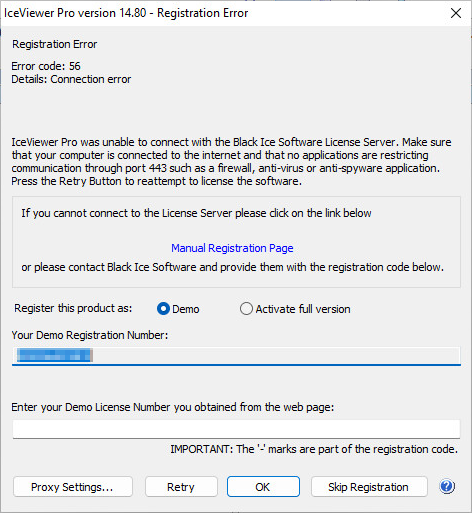
If the automatic registration fails during installation, one can register the IceViewer manually without an active internet connection by following the instructions below.
NOTE: In case the IceViewer is registered manually, the license is not transferable to another computer.
In a secured environment where servers and computers do not have an active Internet connection, Port 443 is being blocked by a firewall, or in virtual machines where the network card is disabled, the following window is displayed during the installation process.
Please contact the Network Administrator to enable the port 443 and press Retry to reattempt to register the product.
The IceViewer also can be registered through a proxy server. For more information, please refer to the Registering through a Proxy server section.
Manually registering the IceViewer Release version
In a secured environment where the port 443 cannot be enabled, the software can be manually registered online.
Please select the Activate full version option, enter the serial number in the IceViewer Product Serial Number field and press OK. The serial number can be found in the body of the email containing the download instructions for IceViewer.
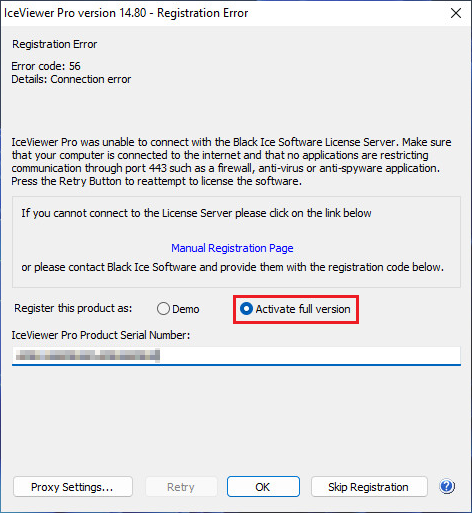
The following window appears.
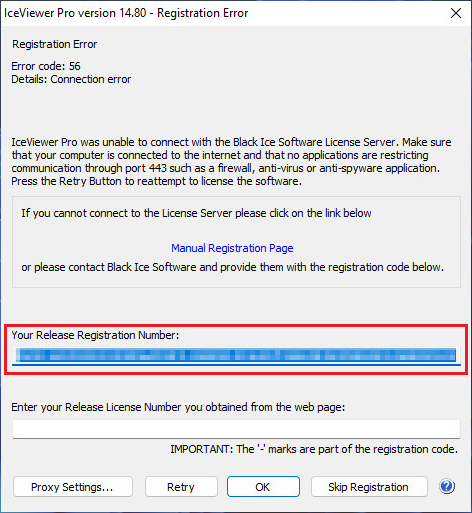
To receive a Release License Number immediately, please copy the You Release Registration Number from the installer window to the Enter your Release Registration Code field on the Release Manual Registration webpage as shown below.
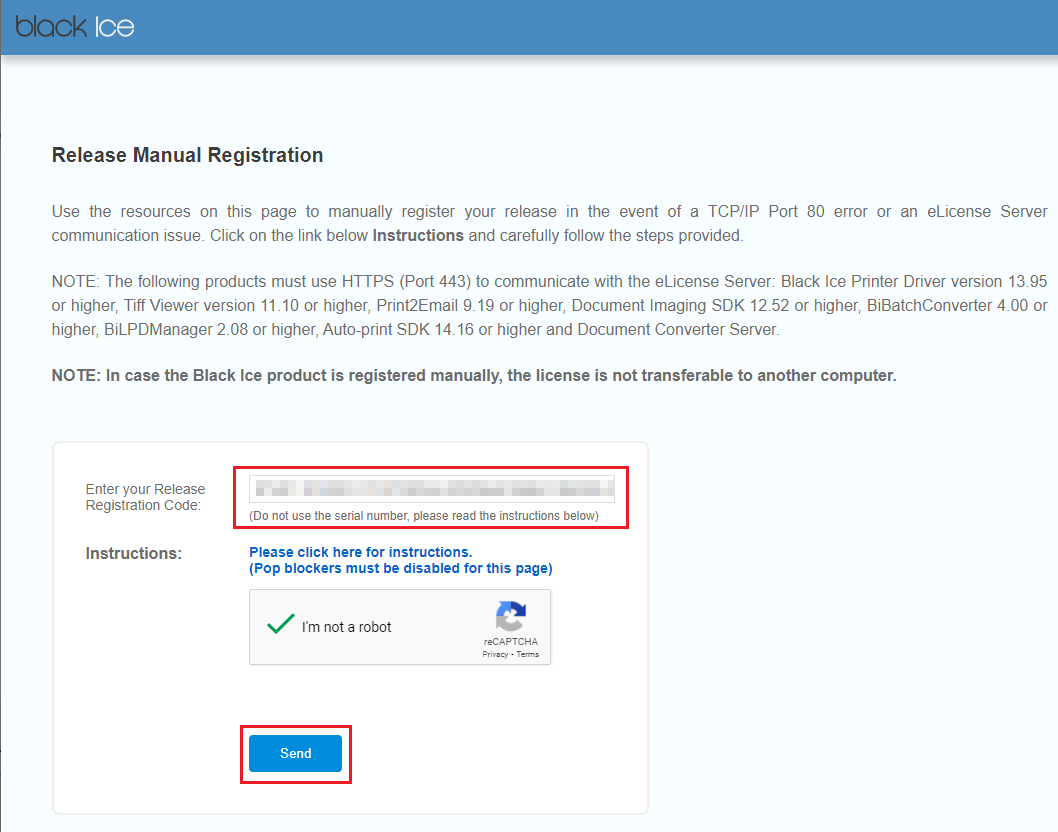
Please check the captcha checkbox and click the Send button. The following window appears:
NOTE: If one registers a transferable serial on the manual registration webpage, the license will not be transferable anymore and the license cannot be transferred to another machine.
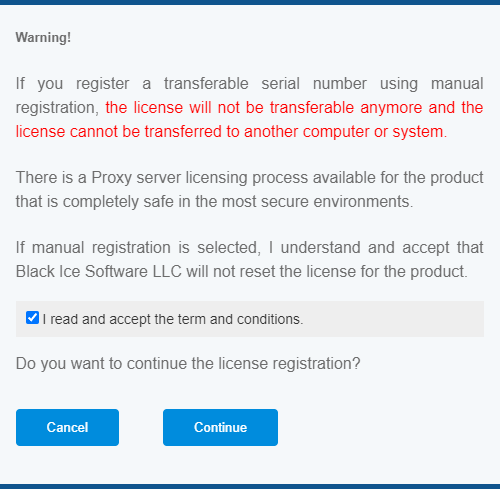
Click Cancel to abort the registration process (the license number remains transferable) or Continue to receive a Release License Number.
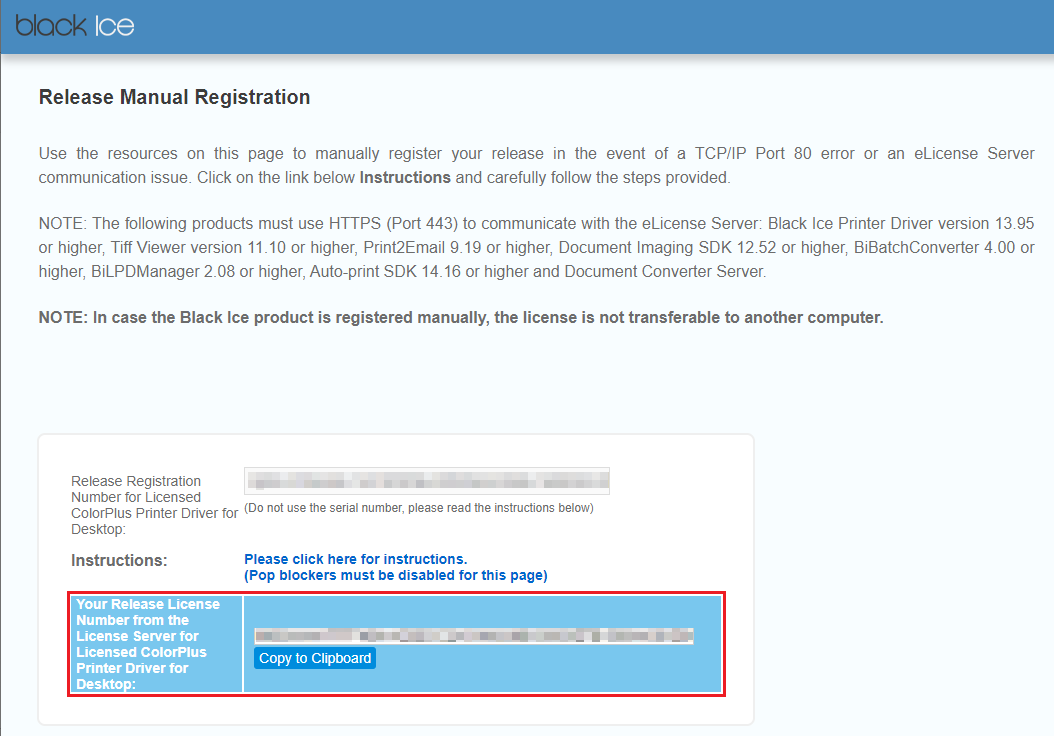
Please copy and paste the received license number to the Enter your Release License Number you obtained from the web page field on the installer window.
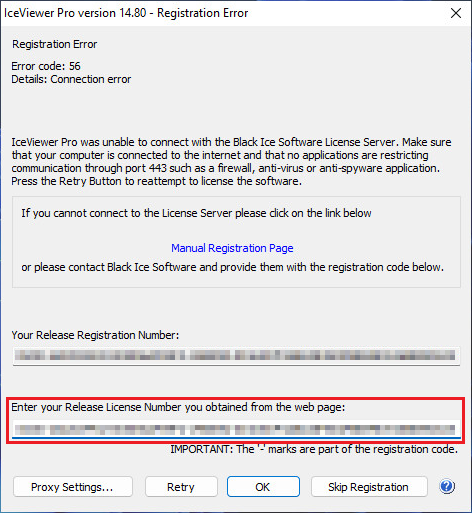
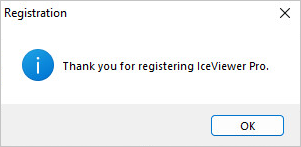
Click OK to continue the installation. If registration is successful, the following dialog appears:
Alternatively, contact Black Ice Software via impactsales@blackice.com or impactsupport@blackice.com or via telephone with the number displayed in the Your Registration Code field. Black Ice Software will provide a Release License code via email for you to paste into the Your License Number (from the reseller) field to activate the software.
Older versions of the IceViewer (formerly TIFF Viewer)
The Black Ice IceViewer’s older versions (version 11.09 or lower) try to register through the port 80. If port 80 is blocked or not available, one can register using the alternate ports of 3500 or 15000.