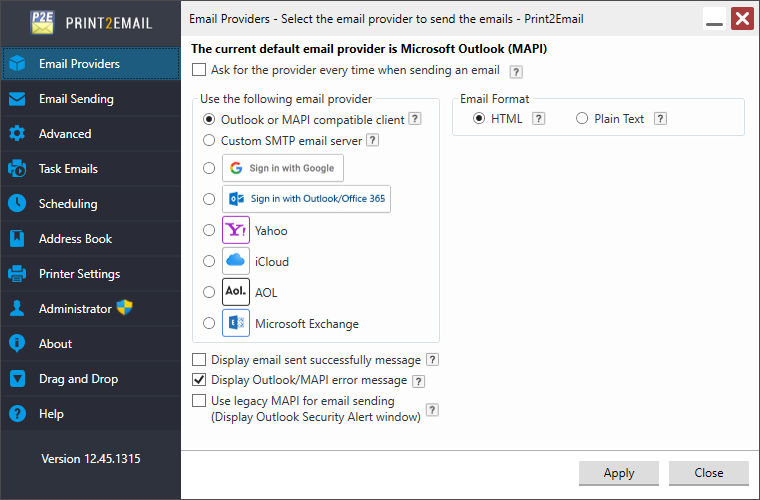
Print2Email can read standard HTML code in the email body and send emails through Outlook as HTML, ensuring recipients receive properly formatted messages.
To enable with Outlook (e.g., Outlook 365):
Select Outlook or a MAPI-compatible client as the email provider.
Make sure Use legacy MAPI for email sending is disabled.
The Outlook email compose window will then display the email content with full HTML formatting.
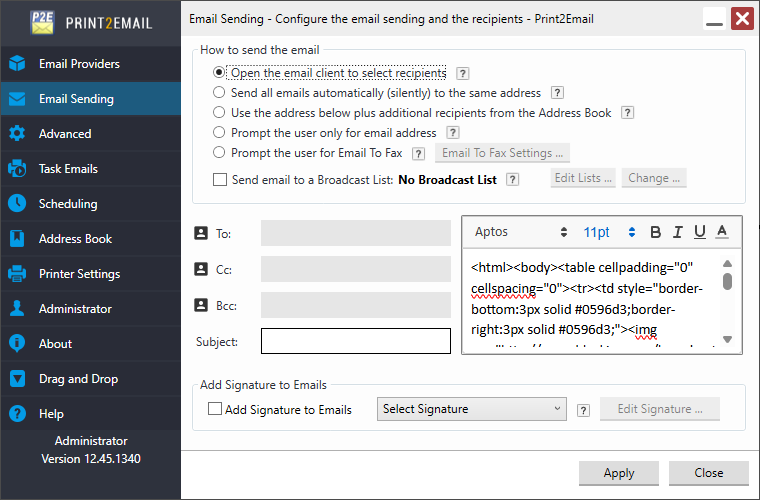
To format your email body with HTML, please make sure that your HTML code starts with <html><body> HTML tags, and ends with </body></html> HTML tags.
For example:
<html><body><div style="background-color:#0099ff;padding:10px;color:#fff;">This is an HTML formatted email body.</div></body></html>
Also, to ensure that the HTML will be displayed properly, please remove the line breaks and tabulators from the HTML code.
The recommended way to add a HTML to your emails is the following:
1. Enter the HTML code to Print2Email to the email body, as on the following image:
2. When printing a document to Print2Email, the predefined email body with the HTML code will be inserted to the email sending window automatically as HTML code.
3. When sending the email, Print2Email will send the email body as formatted HTML code, and the receiver will see the translated HTML correctly.
NOTE: Please note that the HTML email sending works with Outlook, Print2Email SMTP email sending, or predefined Gmail, Yahoo, AOL, iCloud, Outlook.com, or Exchange accounts in Print2Email.
NOTE: HTML email sending does not work with other MAPI-compatible clients other than Outlook, such as Lotus Notes, Thunderbird.