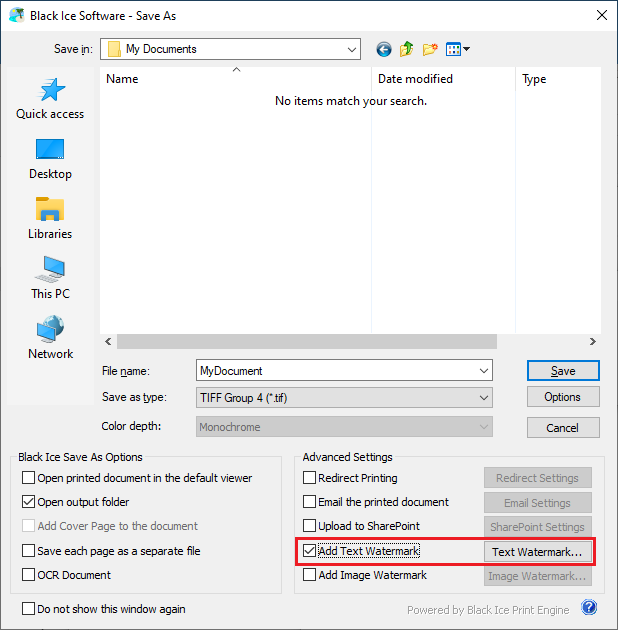
The user can add specific text as a watermark or stamp to the printed document, such as a company logo or a label to indicate the status of the document. The Black Ice Printer Driver can be configured to add a watermark/stamp to the printed document during saving. To make sure the Save As window appears each time when printing a document, please check the Enable Save As Option on the Printing Preferences > Filename Generation tab. To read more about the Save As option, please see the Save As Dialog section.
To add a text watermark or stamp to the printed document during saving, please enable the Add Text Watermark option on the Save As dialog.
Please click on the Text Watermark… button, to configure the watermark/stamp. On the Select Stamp or Watermark window, select a stamp or watermark from the Select Stamp or Watermark list, or enter custom text in the Text field to insert into the printed document. To read about how to edit the list of watermarks/stamps, please see the Adding Text Based Watermark section.
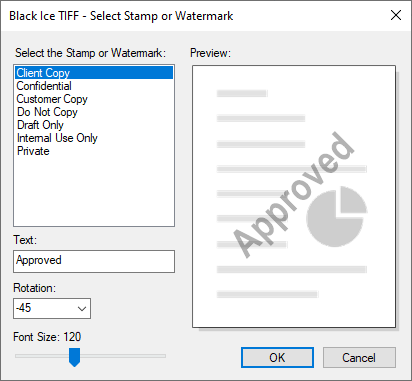
Rotation
The user can select the rotation angle of the selected watermark/stamp.
Font Size
The user can set the font size of the text watermark/stamp, by adjusting the Font Size slider.
Preview
Shows the preview of the configured layout and size of the watermark/stamp.