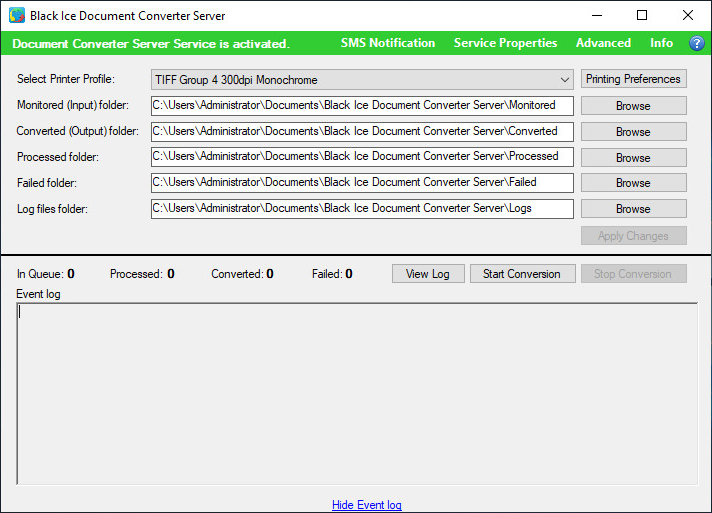
The Document Converter Server is able to send SMS notifications to users in several stages during the document conversion. To Setup the SMS notification, click on the SMS Notification button on the Document Converter Server User Interface.
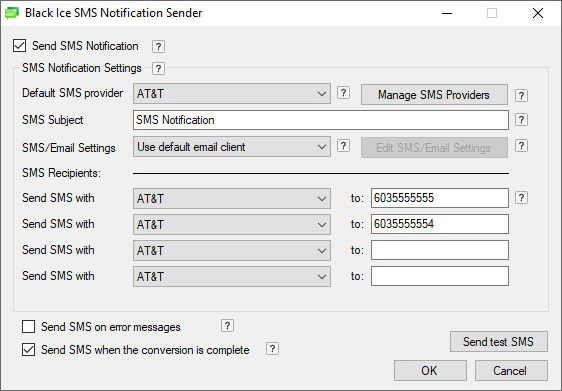
The following window appears where one can configure the SMS notification:
NOTE: The SMS notification feature uses regular email sending to send out the SMS notifications to the SMS providers. In order to use the SMS Notification feature, one must select a working email client from the SMS/Email Settings dropdown list, or configure the email client in the Edit SMS/Email Settings.
To enable the SMS notification sending, check the Send SMS Notification checkbox on the top of the window.
Default SMS provider contains the list of the added SMS providers. The selected default SMS provider will be used by default for SMS sending.
To add new SMS providers, click on the Manage SMS Providers button. For more information, please refer to the Manage SMS providers section.
SMS Subject contains the subject of the SMS Notification.
Data type limits: Allow characters, digits and any special characters.
Data type length: Minimum 0 and maximum 30 characters.
From the SMS/Email Settings dropdown list, one can select an email provider to send out the SMS notifications. The following options are available:
Use the settings from email notification – This option will use the same email settings which were setup in the Document Converter Server Email Notifications. This option is useful if one would like to use the same email configuration for SMS and Email notifications both.
Use default email client – Uses the default email client setup on the computer, such us Microsoft Outlook, Thunderbird, Lotus Notes.
Use custom SMTP server – Uses a custom SMTP server. One can configure the SMTP server by clicking on the Edit SMS/Email Settings button.
Gmail
Yahoo
iCloud
AOL
Outlook.com
To configure the Gmail, Yahoo, iCloud, AOL, Outlook.com accounts, one must click on the Edit SMS/Email Settings button, once the appropriate email provider was selected. For more information, please refer to the Edit SMS/Email Settings section.
In the SMS Recipients area, one can configure the SMS provider to send the SMS notifications with, and the recipient’s phone number to receive the email.
Data type limits: Allows only digits and + characters.
Data type length: Fields must be minimum 8 and maximum 15-digit length number.
If the Send SMS on error messages option is enabled, the Document Converter Server will send notifications upon every error messages.
If the Send SMS when the conversion is complete is enabled, the Document Converter Server will send notifications once the conversion is complete.
Clicking on the Send test SMS button will send a test SMS notification to all the configured SMS recipients.