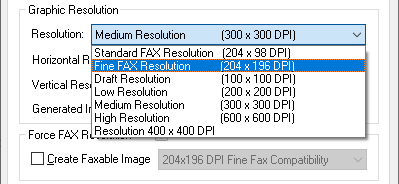
One can edit the graphic resolution of the printer driver or create a custom pre-defined default graphic resolution list for the users.
Many specialized applications require very highly specific resolutions (DPI) that aren’t supported by ordinary printers. That makes changing the graphic resolution cumbersome, even when there is an option for adding custom graphic resolutions to each user, one by one.
The pre-defined graphic resolutions are available in the Resolution drop-down list.
To read more about Default Graphic Resolutions section of the manual.
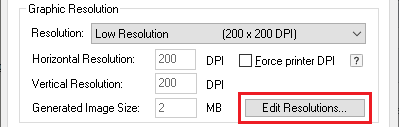
System administrators can install the printer driver with a predefined graphic resolution or allow users to manually add or edit the graphic resolution by using the Edit Resolutions… option as shown below.
The Edit graphic resolution list window displays the available printing resolutions. The selected resolutions are available for users in the Resolution drop-down list on the Device Settings tab. To hide an item from the Resolution drop-down list, uncheck the checkbox next to the appropriate resolution.
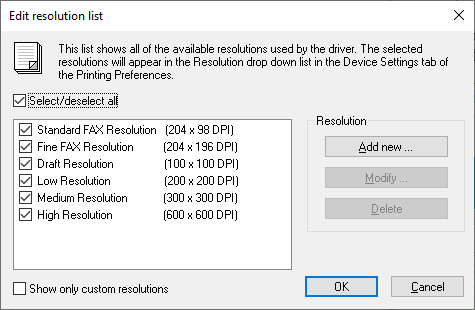
To add a custom resolution, please click on the Add new… button. The following window appears where one can define a custom resolution in DPI.
NOTE: The value of the horizontal and vertical resolution must be between 50DPI and 3000DPI.
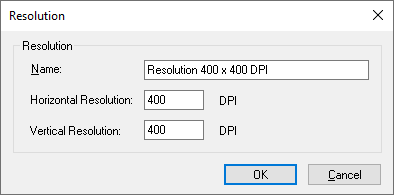
Click on the OK button to save the specified resolution.
The Resolution drop-down list will show the newly added custom resolution.